Choose the moments. Make one movie.

Arrange several photos and short clips yourself, or let the app find highlights in one longer video. Both paths take four simple steps.

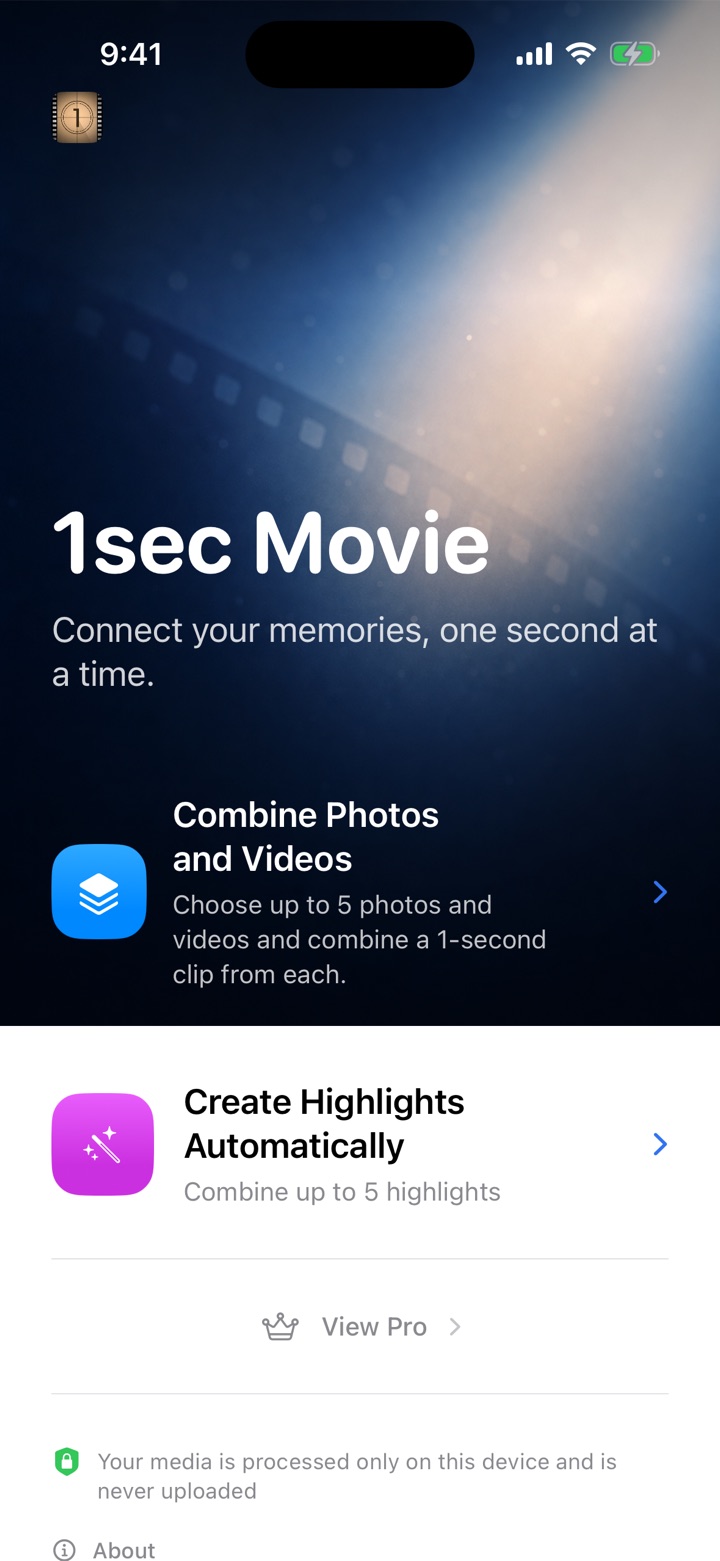
The 1sec Movie home screen with options to combine photos and videos or create highlights automatically
Choose the workflow that fits your source material.

Four steps to a finished movie

After selecting your media, you can still review and adjust the result before generation.

  1. Choose a workflow

    From the home screen, choose “Combine Photos and Videos” or “Create Highlights Automatically.” Decide whether you want to arrange several items yourself or shorten one long recording.

  2. Select your media

    Use the iPhone system picker to choose a collection of photos and videos, or one longer video to analyze. The app does not request permission to read your entire photo library.

  3. Adjust the result

    Review the item order and clip duration, or choose which detected highlights to keep. You can also set the aspect ratio, music, and color tone to suit the movie.

  4. Generate, save, and share

    Generate the movie and play it back, then save it to your photo library. You can also share the finished file directly with the iPhone share sheet.

Choose the workflow that fits your media

The two workflows differ in what you select first and how much of the initial edit the app handles.

Combine Photos and Videos

Select several photos and short clips, arrange them in the order you want, and join them into one movie. It works well for trips, family milestones, and other stories where you want to choose every moment.

Source media
Multiple photos and videos
Main controls
Item order and clip duration

Create Highlights Automatically

Select one longer video. The app analyzes it on your device and connects detected highlights into a shorter movie. It works well when you want a quick recap of an event, trip, or long recording.

Source media
One long video
Main controls
Which highlights to include

Fine-tune the output in either workflow.

Set how the movie looks and sounds before you generate it.

Portrait or landscape
Choose portrait 9:16 for phones or landscape 16:9 for TVs and computers.
Music
Add original music bundled with the app or audio selected from Files. Music repeats to match the finished movie.
Color tone
Apply a consistent look across the movie. “Original” adds no creative color adjustment and exports in SDR.